Overview
Screen layouts define how content is arranged and displayed on your players. Each layout can contain multiple frames, which specify areas of the screen for different types of content. Screen layouts are assigned to players to ensure campaigns are displayed correctly according to orientation and frame configuration.
For each layout, you can view:
Name – The screen layout’s identifier.
Number of Frames – How many frames the layout contains.
Creation Date – When the layout was created.
Players Included – Number of players currently using the layout.
Accessing Screen Layouts
To manage screen layouts:
Navigate to Webplayer in the main menu.
Select Screen Layouts.
This opens the Screen Layouts section, where you can view, create, or edit layouts.
Creating a New Screen Layout
Step 1: Start a New Layout
Click New Screen Layout to begin creating a layout.
Step 2: Configure Layout Details
Fill in the following details:
Screen Layout Name – Provide a descriptive name for your layout.
Example Orientation – Choose the layout orientation: Portrait or Landscape.
Step 3: Add Frames
Frames define individual areas within the screen layout. To add a frame:
Click Add Frame.
Configure the frame properties:
Frame Name – Provide a unique name for the frame.
Tag – Select a tag if applicable.
Starting Point – Set the X-axis (horizontal) and Y-axis (vertical) coordinates to position the frame.
Dimensions – Adjust the Width, Height, and Z-index (layer order/color) according to your preference.
You can add as many frames as needed within the layout dimensions.
Step 4: Save the Layout
Once all frames are configured, click SAVE to save the screen layout.
A confirmation popup will appear, indicating that the layout has been successfully added.
✅ Tip
Always verify that the layout orientation and frame dimensions match the screen resolution of the players to ensure proper content display and avoid misalignment issues.
Accessing Players under the Screen Layout
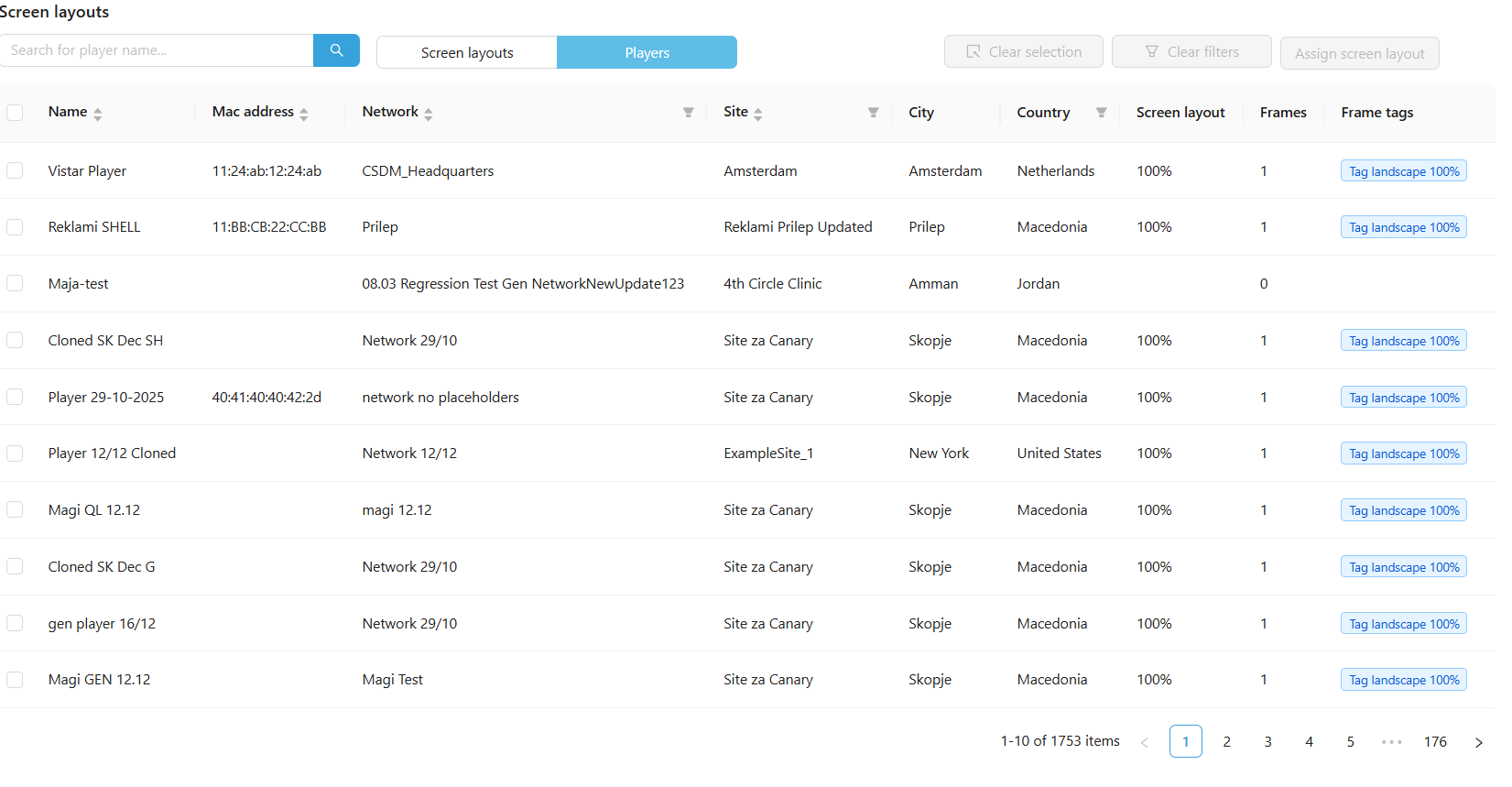
By selecting players you will get on this page. Here it is possible to select a player and add a screen layout to it. This will make sure that the selected player will make use of the created Screen Layout.
Comments
0 comments
Please sign in to leave a comment.